Set up a project and share it with your client
Create a project, then invite your client by email right from the welcome window. They join with that same email address and see the whole project with you, on the website or in the IDColab app.
- Web
- iPhone and iPad
- Android
The simplest way to work with a client in IDColab is to invite them into your project. As soon as you create a project, IDColab asks who you would like to invite. Your client gets an email, joins with that same address and sees the whole project with you: files, posts, discussions and comments.
Inviting your client works on every plan, including Starter. Just want to show one design? You can also send a public link to a single file, and on Studio and Design Pro you can share selected files and folders privately with people outside your project team.
Step 1: Create your project
On the website, select New Project at the top of the left menu. Add a Project Photo, type the Project Name and Location, then select Create. The website asks for all three, so have a photo of the space ready.
In the IDColab app, tap the project name at the top of the screen, then tap New Project. If you have no projects yet, tap Create Project. In the app the photo is optional.
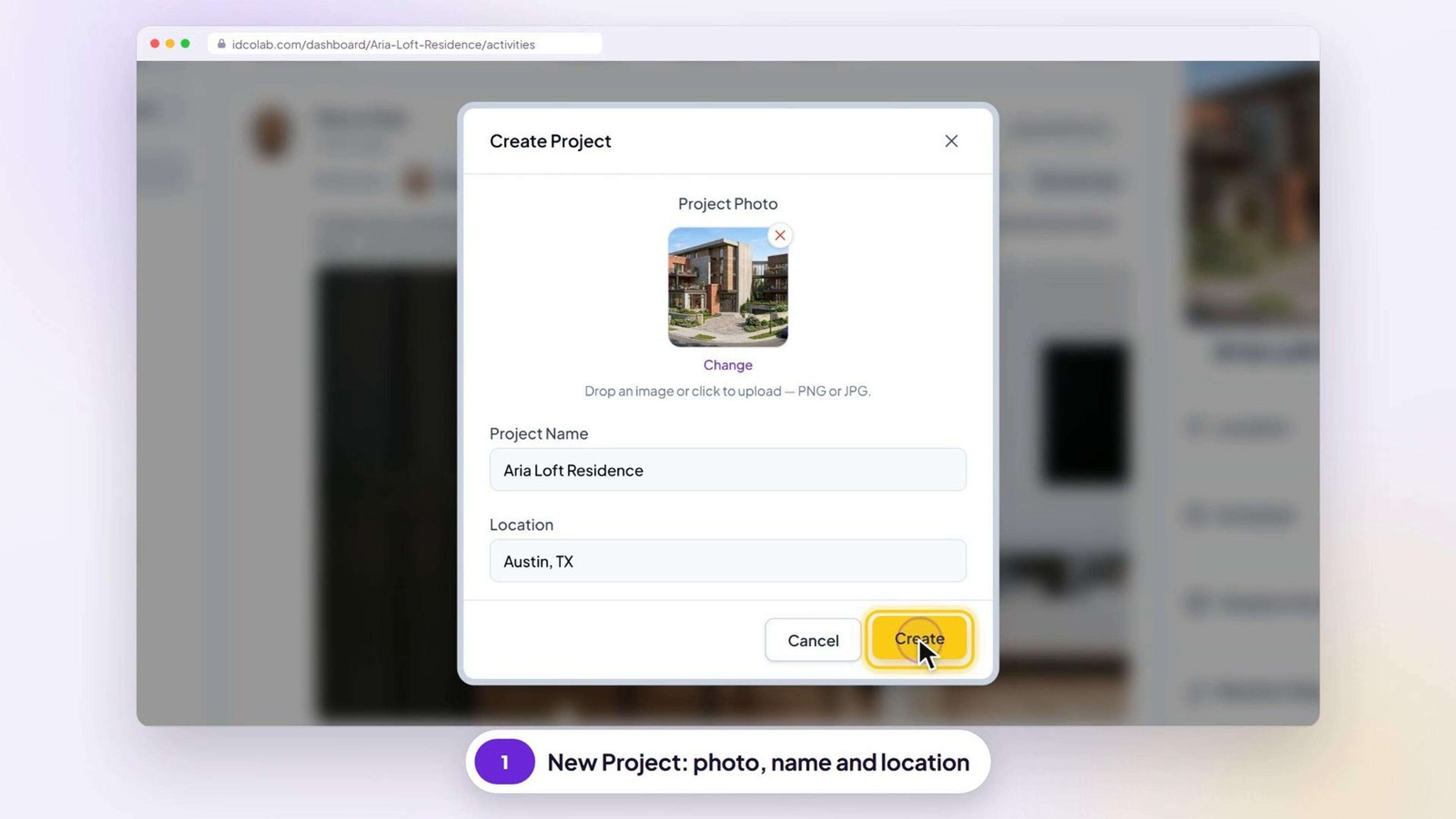
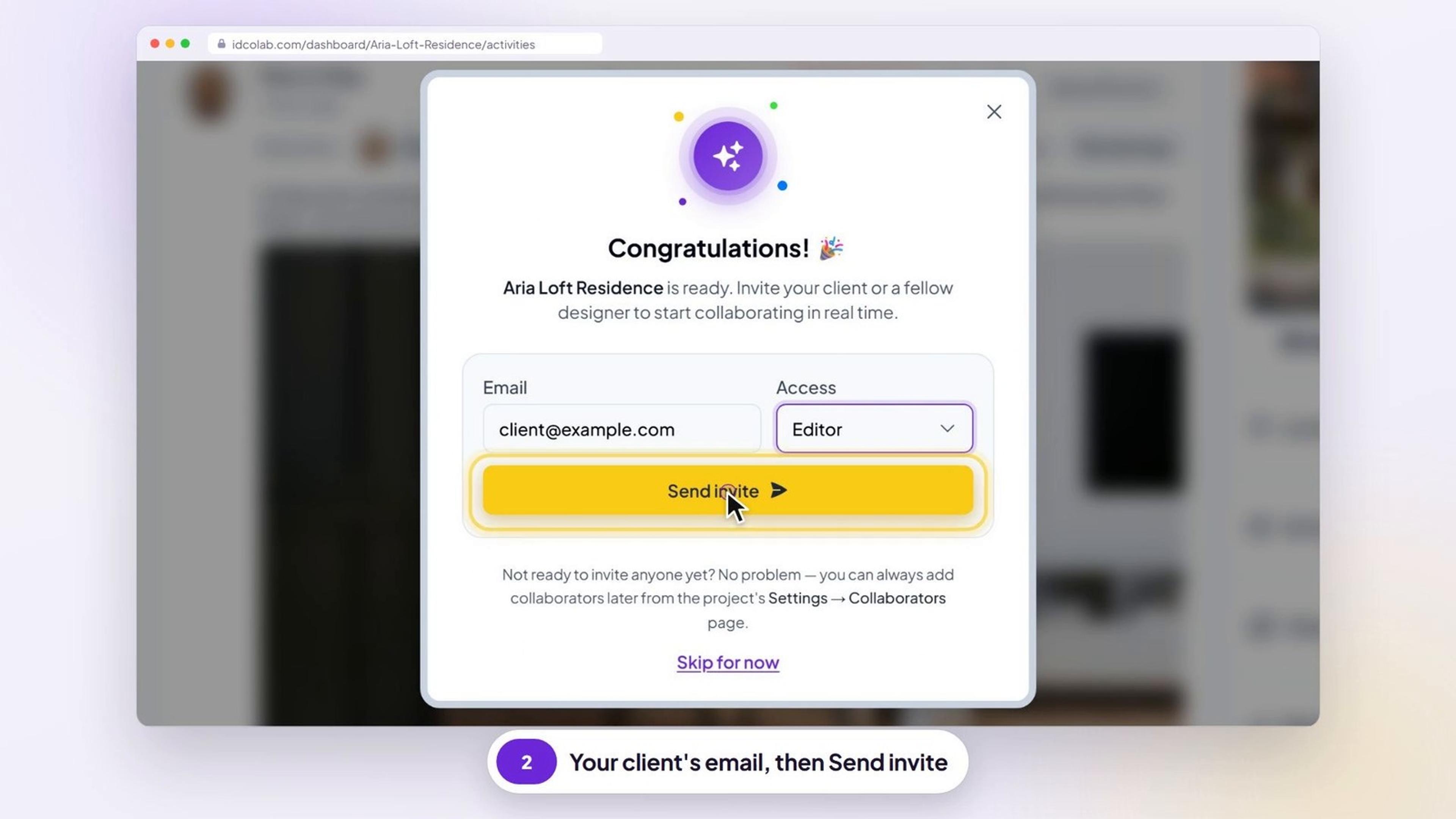
Step 2: Invite your client from the welcome window
As soon as your project is ready, a Congratulations! window opens and asks you to invite your client. Type their email address in Email, for example client@example.com, and choose their Access.
Select Send invite. You will see Invitation sent! Select Invite another to add the next person, or Go to project to start working.
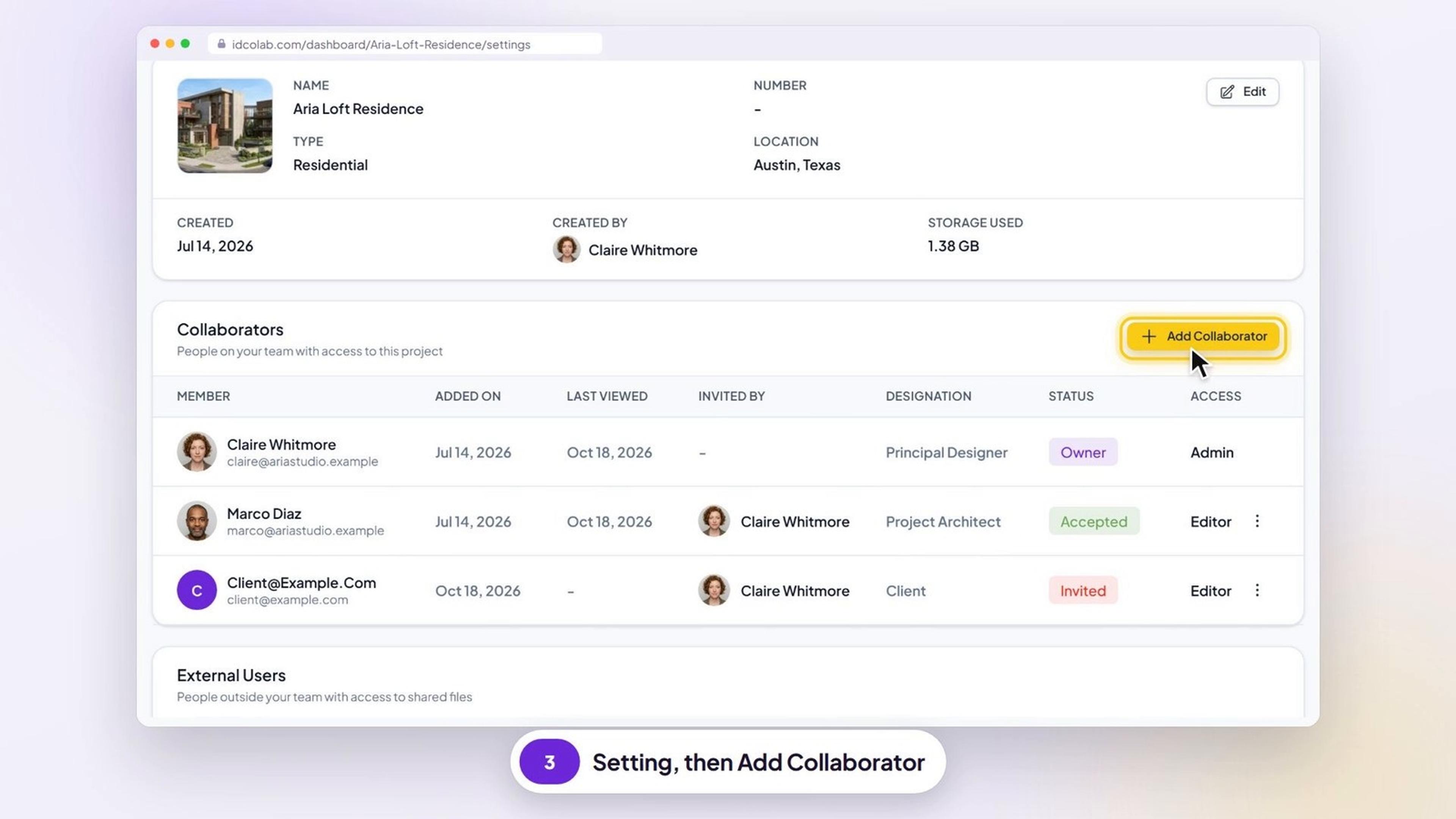
Not ready yet? Select Skip for now and invite your client later from your project settings, as shown below. In the app, you always invite people from Settings.
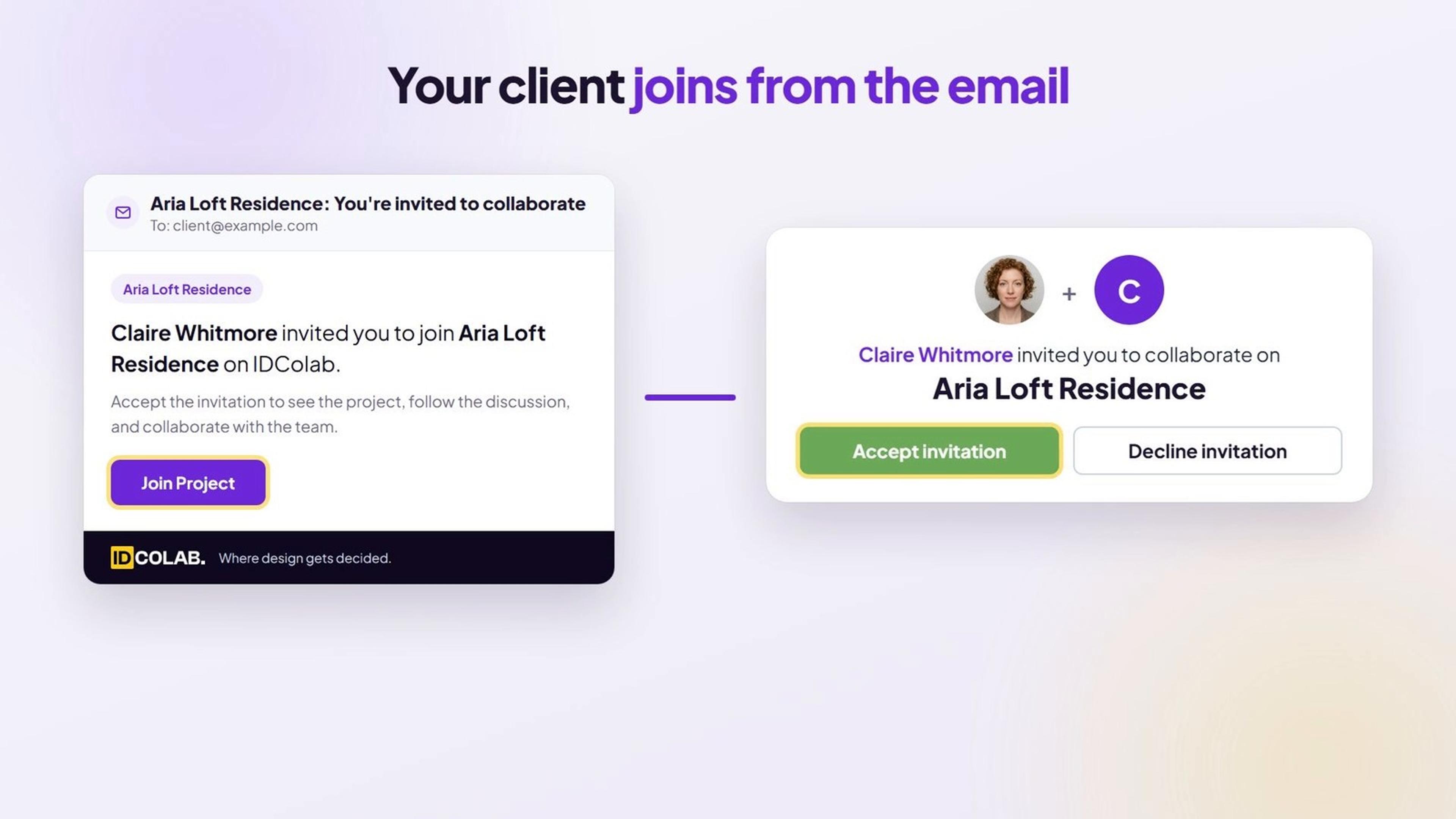
Step 3: Your client accepts the invitation
Your client gets an email from IDColab saying you invited them to join your project, with a Join Project button.
They select Join Project, then Login or Sign Up with the same email address you invited, and select Accept invitation. Creating an account is free, and the invitation link works for 7 days.
Once they accept, your client sees the whole project on the website or in the IDColab app for iPhone, iPad and Android.
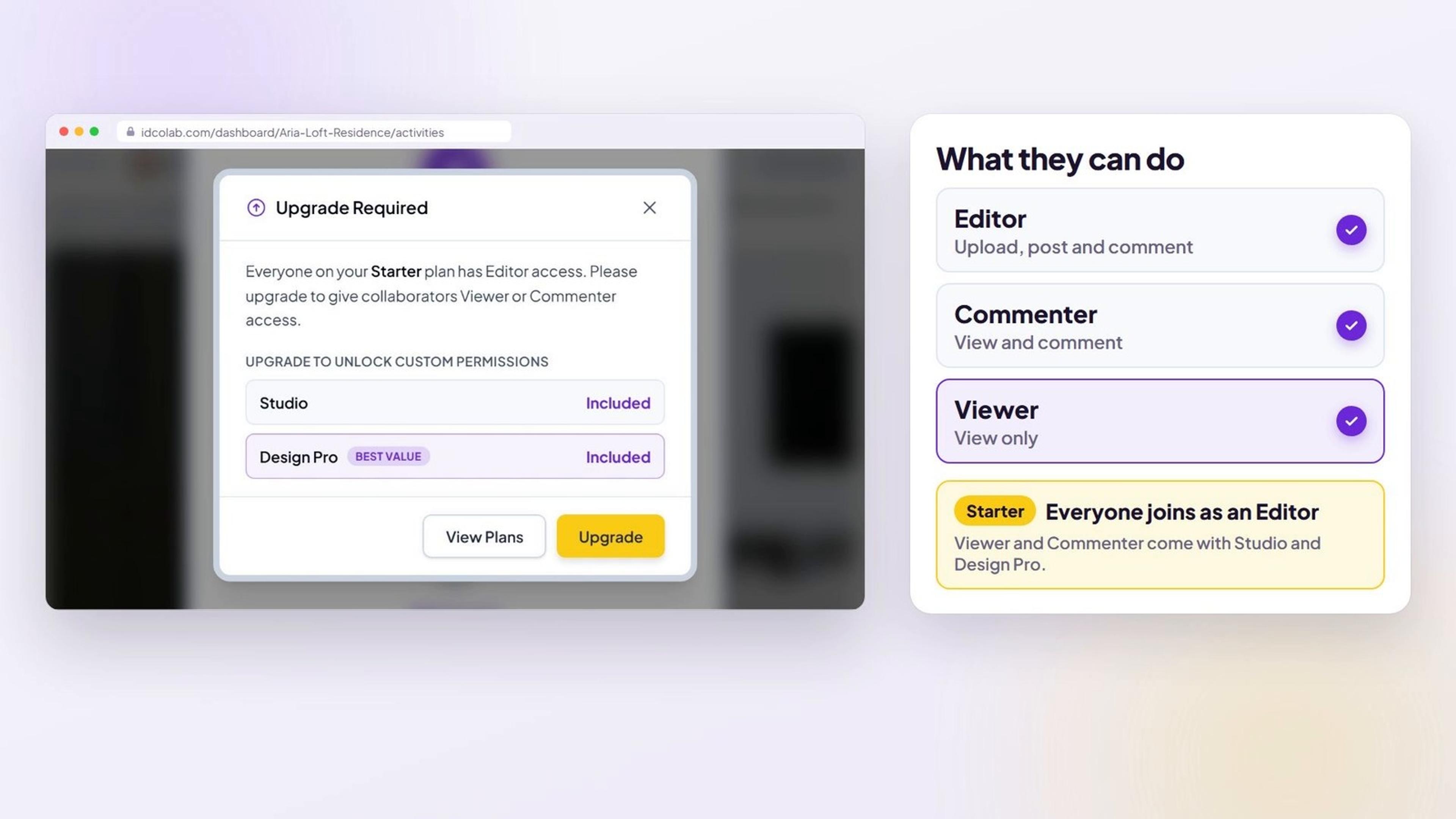
Step 4: Choose what your client can do
Editor can view, comment, upload files and edit posts. Commenter can view and comment. Viewer can only view.
On the Starter plan, everyone you invite is an Editor. To give your client Viewer or Commenter access, upgrade to Studio or Design Pro on the plans page.
Step 5: Invite or manage people later
On the website, open Settings in your project's left menu. Under Collaborators, select Add Collaborator, enter the Email and Access, then select Create. Each person shows as Invited until they accept, then Accepted.
In the app, tap the sections menu (the grid icon at the bottom), then Settings. Under Project Collaborators, tap Add Collaborator, fill in Email Address and Access Rights, pick a Role such as Client if you like, then tap Submit.
Only the project owner or an admin can invite people.
Step 6: Share a single file instead
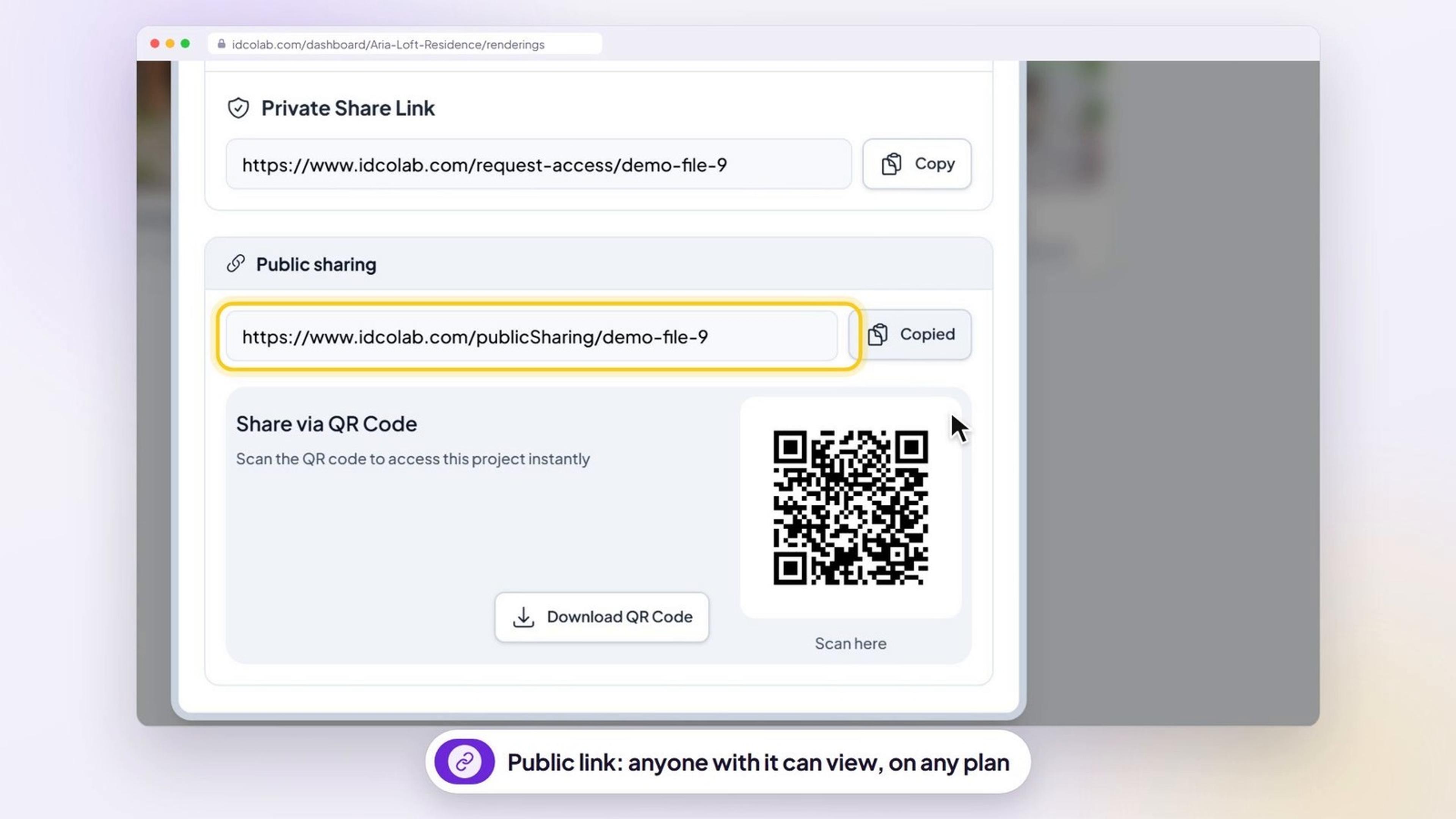
To show your client one design without inviting them, open the menu on a file or folder and select Share. Under Public sharing, select Copy and send them the link. Anyone with the link can view that item, no account needed. Public links work on every plan.
To give someone outside your team private access to selected files and folders only, enter their email under Invite by email in the same window and keep Notify by email ticked. These external collaborators need the Studio or Design Pro plan.
Troubleshooting
My client did not get the invitation email.
Ask them to check their spam or junk folder and search for "You're invited to collaborate". Check the address in Settings, under Collaborators. If your client already uses IDColab, the invitation also appears in their notifications. To send it again, add the same email address again with Add Collaborator, and we send a fresh invitation.
The invitation link says it is invalid or expired.
Invitation links work for 7 days. Add your client again with the same email address from Settings, under Collaborators, and we email a new link that works for another 7 days.
My client is asked to sign in with a different account.
They are signed in with a different email address from the one you invited. They can select Sign out & switch account and sign in with the invited address, or you can invite the address they already use.
My client cannot see the project or a file.
Open Settings and look under Collaborators. If your client still shows as Invited, they have not accepted yet, so ask them to open the email and select Join Project. Once they accept, they see the whole project. If you only sent a public link or shared selected files, they see just what you shared.
How many people can I invite?
Each project holds up to 5 people on Starter and Studio, and up to 10 on Design Pro. That number includes you, and invitations that are still waiting count too. Sharing selected files with people outside your team is not part of Starter; Studio allows 5 such external collaborators per project and Design Pro allows 10. When you reach a limit, IDColab shows an Upgrade Required window.
How do I change what my client can do?
In Settings, under Collaborators, select the three dots next to your client, select Edit, choose a new Access level and select Update. In the app, tap the pencil icon on their card in Settings. On Starter everyone is an Editor, and Viewer or Commenter access needs Studio or Design Pro.
How do I remove a client from a project?
In Settings, under Collaborators, select the three dots next to their name and select Delete. In the app, tap the trash icon on their card in Settings, then Remove. They lose access to the project, and their place is free for someone else.
Still need help?
Send us a message and our team will get back to you.