Add links from your dashboard or with the browser extension
Keep product pages, supplier sites and inspiration in your IDColab projects. Add a link from your dashboard in a few clicks, or use the Add to IDColab extension for Chrome to save the page you are on.
- Web
Found the perfect pendant light, or a fabric you want to remember? Save the link to your project. Your team sees it with a picture and a name, right next to your drawings and files.
There are two ways to do it. In your dashboard, choose Link Upload and paste the address. Or, while you browse in Chrome, click the Add to IDColab extension and save the page you are on. Both add the same link card to your project.
Steps 1 to 3 cover the dashboard. Steps 4 to 7 cover the extension, which you install once.
Step 1: Choose Link Upload in your dashboard
Open your project and go to the section the link belongs in, such as Specifications or Images. Open a folder too, if you like.
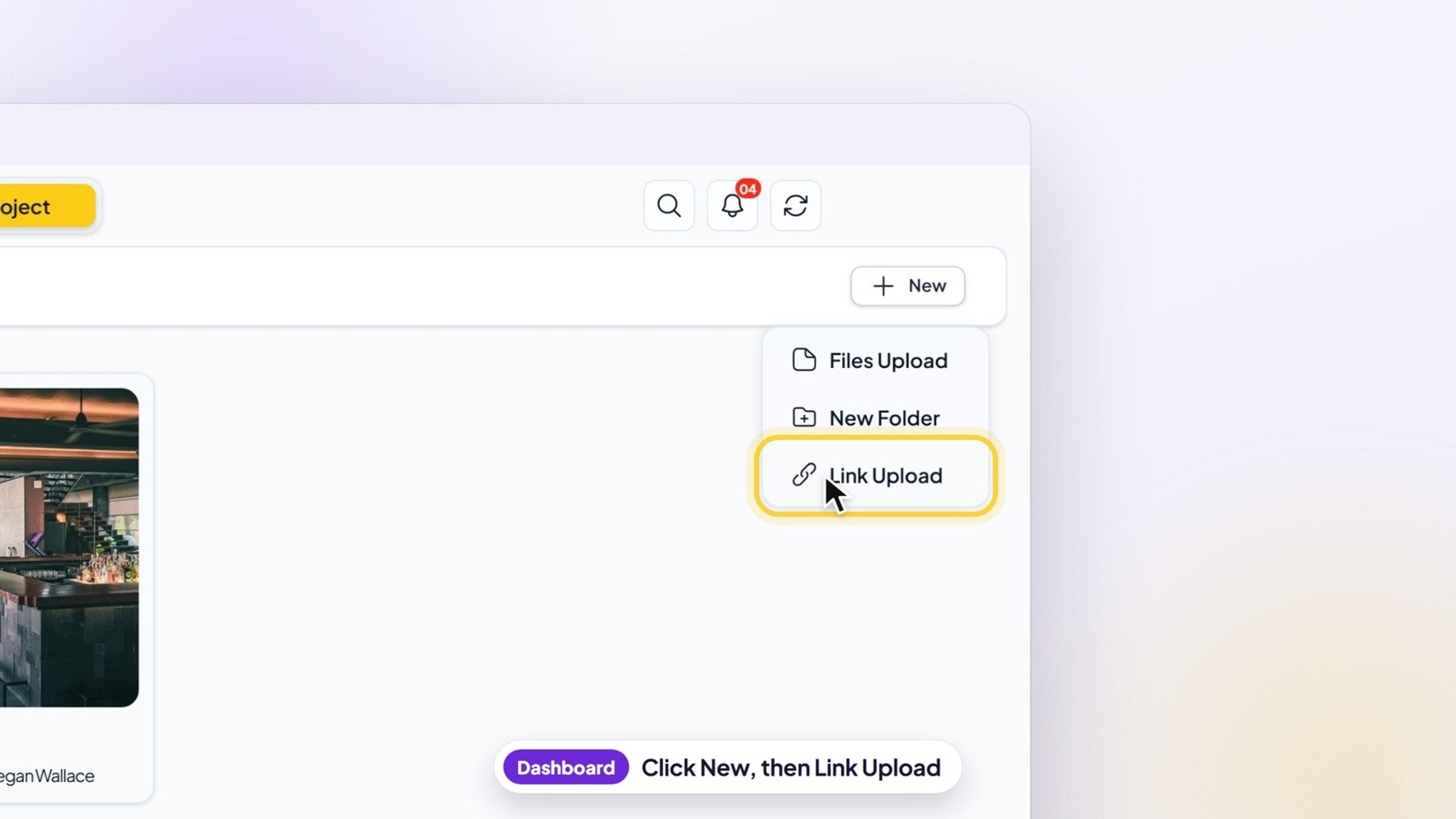
Click New in the bar above your files, then choose Link Upload. The Upload link window opens.
Step 2: Paste the link
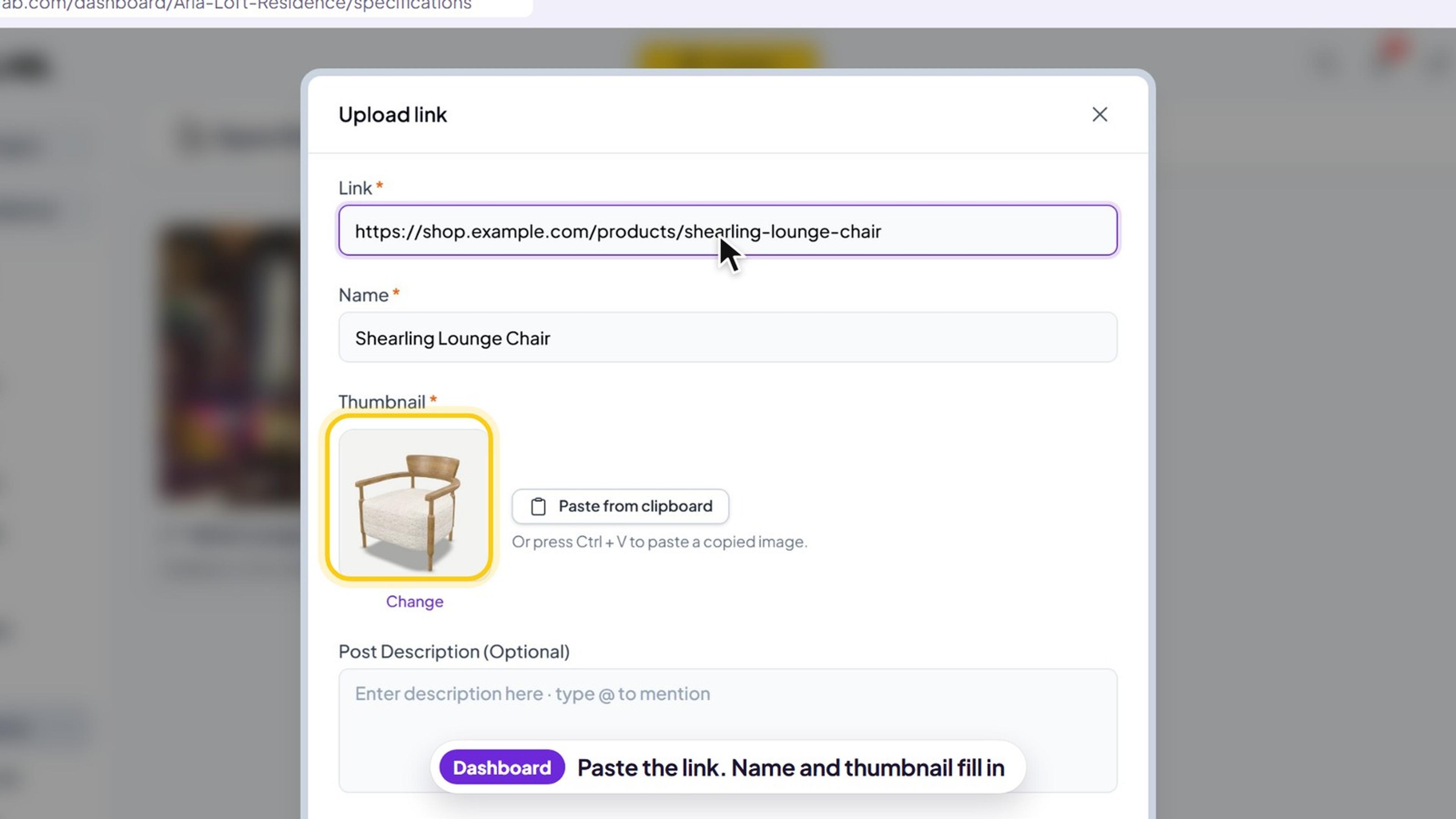
Paste the page address into Link, for example a product page on shop.example.com.
After a moment, IDColab reads the page. Name fills in with the page title and Thumbnail with its preview picture. Rename it to something your team will recognize.
Want a different picture? Click Upload or Change under the thumbnail to choose a JPEG or PNG up to 2 MB. You can also click Paste from clipboard, or press Ctrl + V to paste an image you copied.
Step 3: Add a note and click Upload
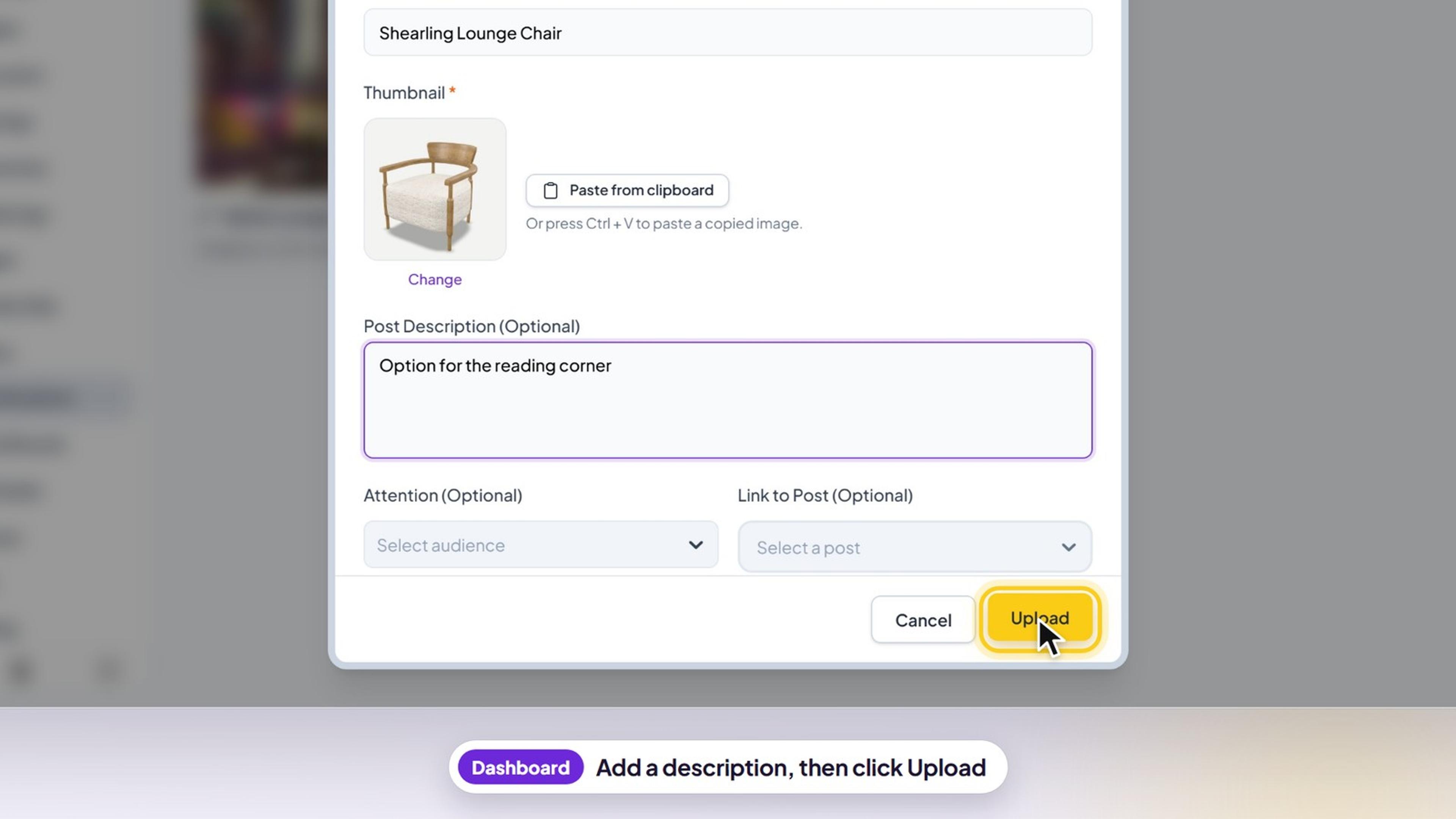
Add a Post Description if it helps, like the finish or the quantity. Type @ to mention a teammate.
Choose someone in Attention to ask them to take a look, or use Link to Post to add the link as a reply to an existing post. Tick Blocker if work is waiting on it, and choose someone in Attention. Leave Feeds ticked so the link also shows in the project's Activities.
Click Upload. Your link appears in the folder you had open, with its picture.
Step 4: Install the Chrome extension once
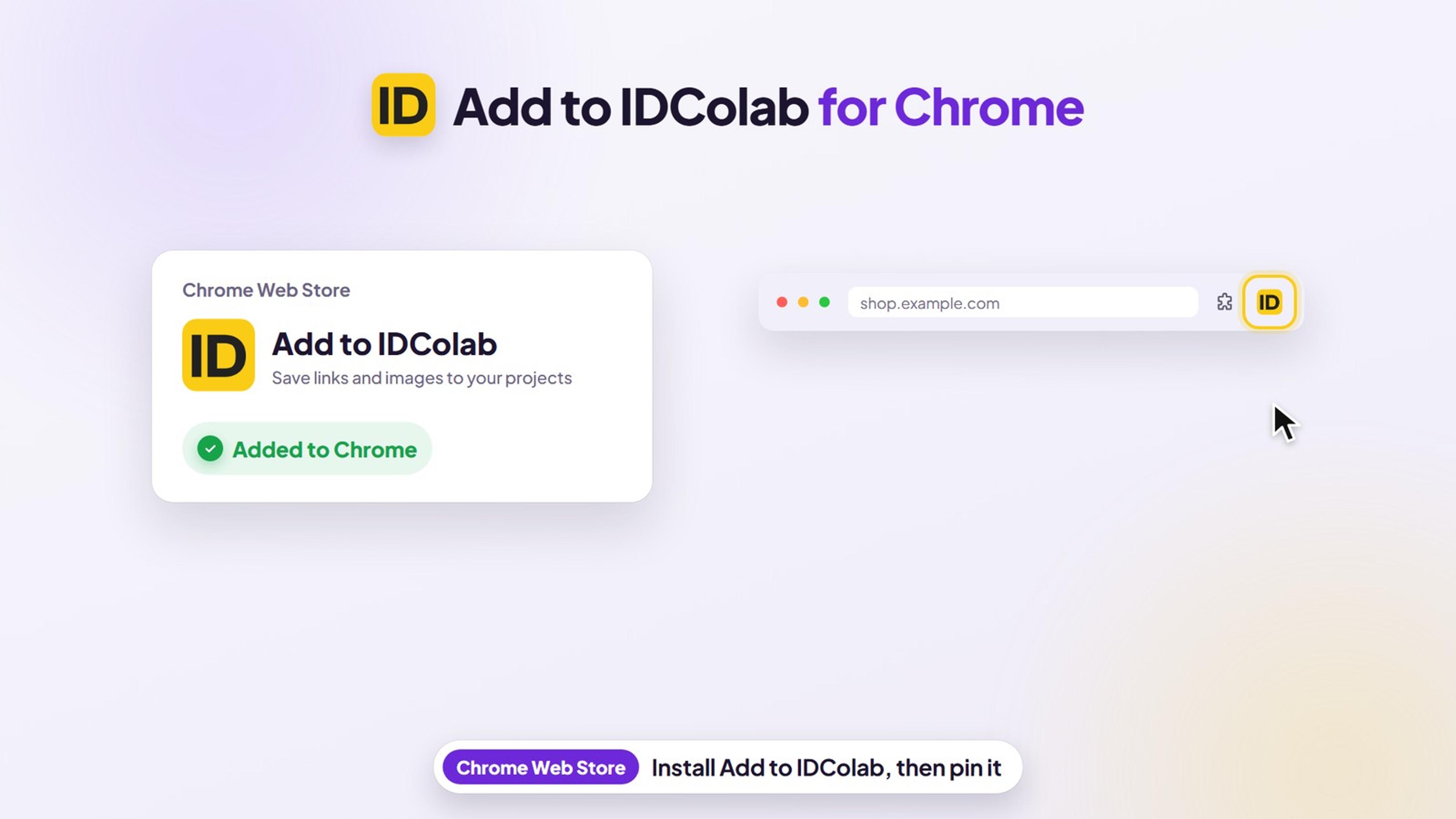
To save links while you browse, add our extension, Add to IDColab. In Google Chrome on your computer, open Add to IDColab on the Chrome Web Store, click Add to Chrome, then Add extension.
Chrome keeps new extensions under the puzzle piece icon next to the address bar. Click it and pin Add to IDColab, so the IDColab icon stays in your toolbar.
Step 5: Sign in to the extension
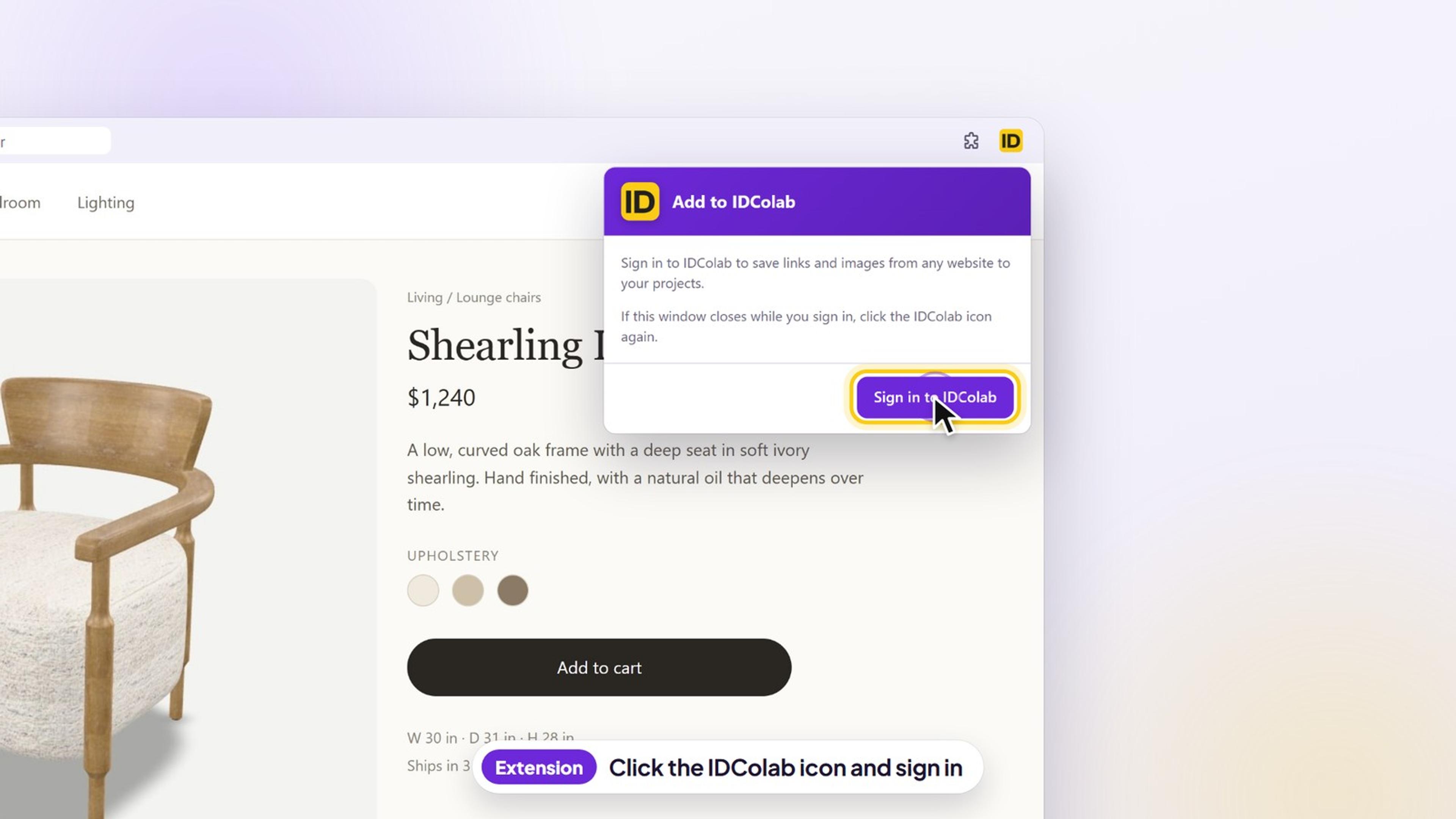
Click the IDColab icon, then Sign in to IDColab. Sign in the way you usually do, with your email and password, Google or Apple.
The top of the extension now shows Signed in as and your email. You stay signed in, so next time you can go straight to saving.
Step 6: Save the page you are on
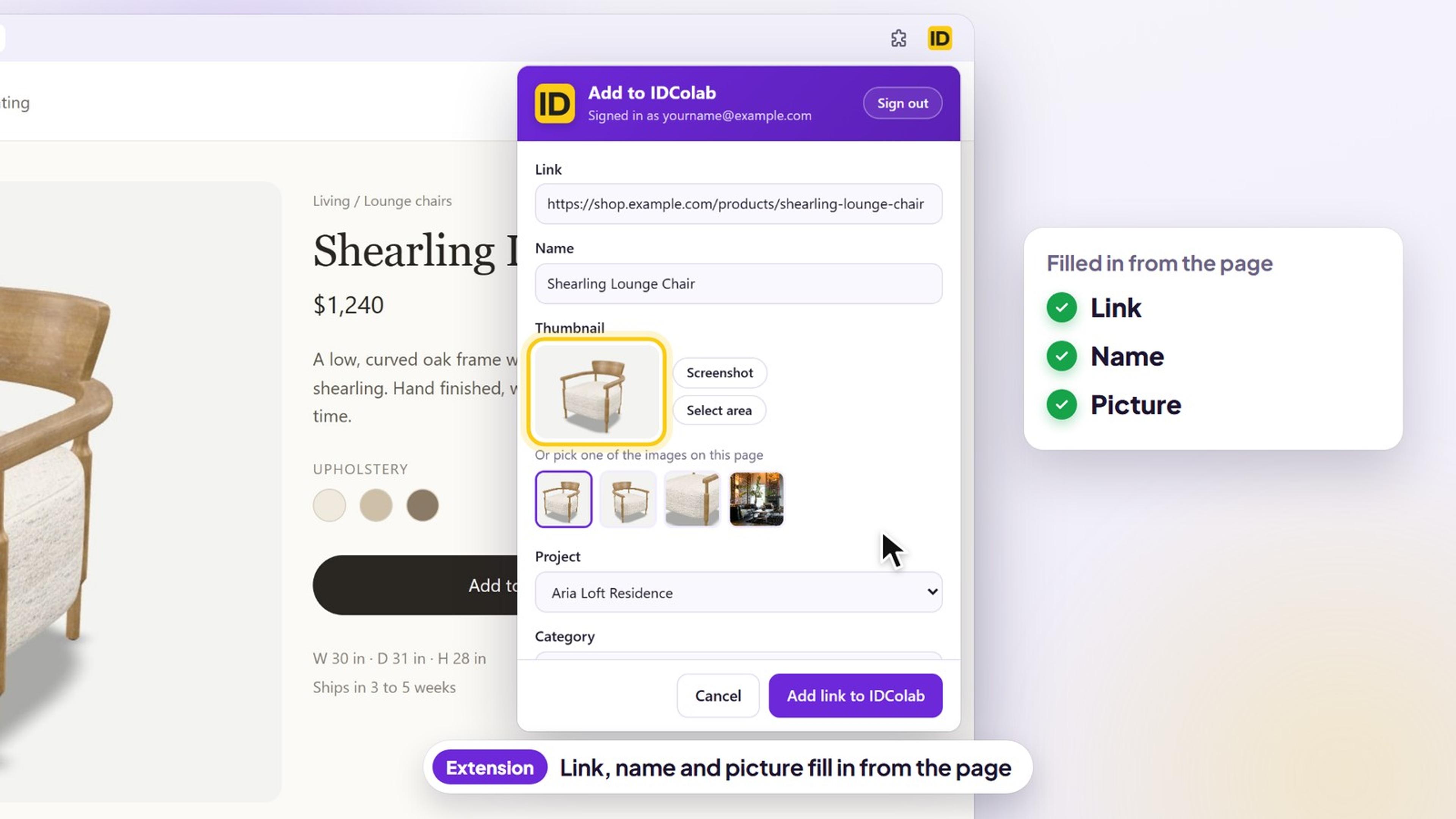
Open the page you want to keep, such as a product page, and click the IDColab icon. Link and Name fill in from the page, and a picture is chosen for the Thumbnail.
Prefer another picture? Pick one of the images from the page, click Screenshot to capture what you see, or click Select area and drag a box around just the part you want.
Choose the Project, Category and Folder, and add a description or someone in Attention if you like. Click Add link to IDColab, then Open folder to see it in your project.
Step 7: Save images and Gmail attachments too
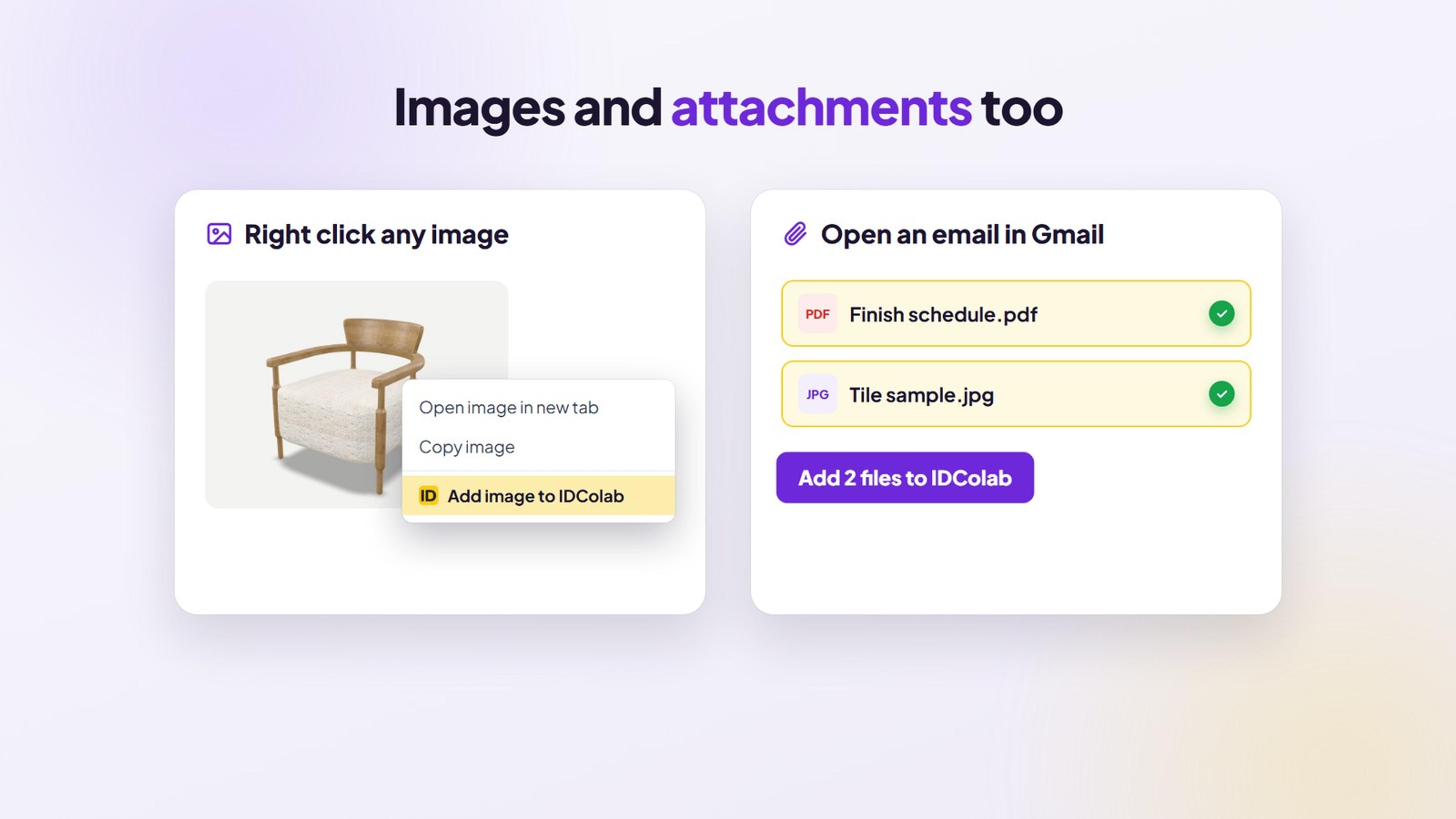
Right click any image on a website and choose Add image to IDColab, then click Upload to IDColab. The image is saved to your project as a file.
In Gmail, open an email and click the IDColab icon. Untick any attachments you do not need and click Add to IDColab.
Troubleshooting
The picture or name on my link looks wrong. How do I fix it?
Some websites do not share a preview picture. IDColab then shows the site's icon, or asks you to upload a thumbnail. Type a better name and choose your own picture before you save. In the dashboard, click Upload or Change under the thumbnail, click Paste from clipboard, or press Ctrl + V. In the extension, pick another image from the page, or use Screenshot or Select area. For a link you already saved, right click it in the folder and choose Edit.
The extension does not show my project.
Check the email next to Signed in as at the top of the extension. The list shows the projects that account owns or has been added to. If you just created the project or were just added, wait a few minutes, or click Sign out and sign in again to refresh the list. No projects yet? Create one in IDColab first.
Why does the extension ask me to sign in again?
For your security, the extension keeps you signed in for 30 days, then asks you to sign in again. It also asks after you click Sign out, and each computer and Chrome profile signs in on its own. If the sign in window closes before you finish, click the IDColab icon and try again.
Can I add links on my phone?
Yes, in the IDColab app for iPhone, iPad and Android. Open a section of your project, tap +, choose Link Upload, paste the link and tap Create. In recent versions of the app you can also share a page from your phone's browser to IDColab. The Chrome extension works on a computer only.
Where did my saved link go?
It is in the project, section and folder you chose, after the folders and files there. The extension starts links in Specifications, then remembers the last category you chose. If Feeds was ticked, the link also shows in the project's Activities. In the extension, click Open folder on the confirmation screen to jump straight to it. Saved it in the wrong place? Right click the link and choose Move.
Which browsers does the extension work with?
Add to IDColab is made for Google Chrome on a computer and installs from the Chrome Web Store. In any other browser, add links from your dashboard instead.
The extension asks me to open a product page.
The extension cannot read Chrome's own pages, such as a new tab, Chrome settings or the Chrome Web Store. Open the website you want to save in that tab, then click the IDColab icon again.
Still need help?
Send us a message and our team will get back to you.